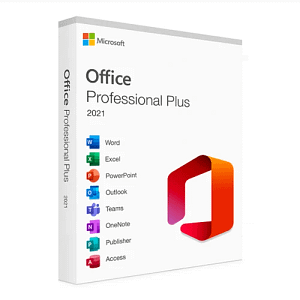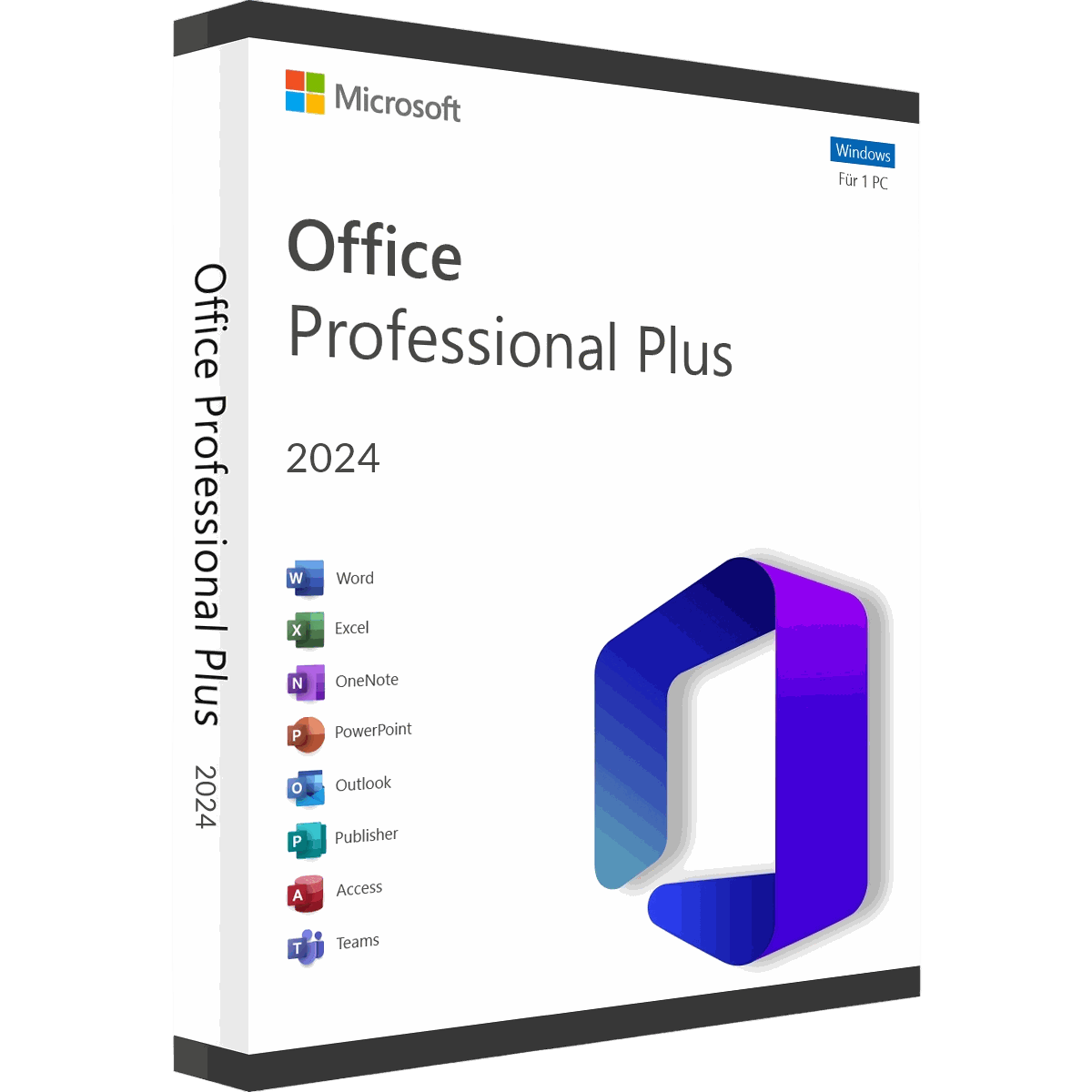
Microsoft Office 2024 Professional Plus Cd Key Global

(1 customer review)

Original price was: $62.00.Current price is: $18.60.


Share it:

Microsoft Office 2024 Professional Plus – for Windows

Microsoft Office 2024 Professional Plus represents the latest and most advanced version of Microsoft’s world-renowned office suite. Designed to meet the needs of professional users and organizations, this suite offers a comprehensive range of powerful productivity tools and features to help you create, edit, and share professional documents.

Included Applications:

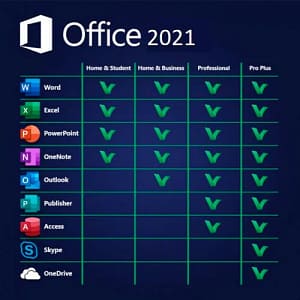
Office 2024 Professional Plus includes the following essential applications:

  • Microsoft Word: For creating and editing text and document files.
  • Microsoft Excel: For analyzing data and creating complex spreadsheets.
  • Microsoft PowerPoint: For designing compelling presentations.
  • Microsoft Outlook: For efficient email management and calendar organization.
  • Microsoft Access: For creating and managing databases.
  • Microsoft OneNote: For creating notes and notebooks.
  • Skype for Business: For business communication and online meetings.

New Features and Benefits:

  • Cloud Integration: Enhanced cloud functionality allows you to easily store and share documents via OneDrive, giving you access to your work anytime, anywhere.
  • Intelligent Assistance: With improved AI tools in Word and Excel, you now receive smart suggestions for content and data analysis, helping you work faster and more effectively.
  • Advanced Presentation Tools: PowerPoint offers new templates and design features, including AI-powered layout suggestions, making it easier to create professional and engaging presentations.
  • Enhanced Collaboration Features: Teams now offers improved real-time collaboration tools, such as a shared whiteboard and integrated notes, enabling teams to work more efficiently—no matter where they are.
  • Data Insights in Excel: New data visualization tools and smart charts help you analyze and present data more easily. Additionally, enhanced options for automated data analysis and reporting are now available.
  • Enhanced Security: New security features ensure better protection of your sensitive information. This includes improved encryption options and advanced threat detection.

System Requirements:

To install and use Office 2024 Professional Plus, your computer must meet the following minimum system requirements:

  • Operating system: Windows 10 or higher.
  • Processor: 32/64-bit processor with a minimum clock speed of 1.6 GHz.
  • Memory (RAM): Minimum of 4 GB RAM.
  • Hard Drive: Minimum of 4 GB of free disk space.
  • Display: A monitor with a resolution of at least 1280 x 800 pixels.

The code is valid for 1pc/1 installation and will stay active forever. if you uninstall/reinstall you might need to buy a new code. it does not expire.

Instructional Office 2024 Professional Plus

Download link (different languages)

Dutch – Download (starts immediately)

English – Download (starts immediately)

French – Download (starts immediately)

German – Download (starts immediately)

Spanish – Download (starts immediately)

Italian – Download (starts immediately)

Portuguese – Download (starts immediately)


Important info before you begin (please read!)

When starting office you should choose PHONE ACTIVATE. Recently microsoft has changed this, from step 7 this is explained step by step

Note:
Before you begin the installation, make sure ALL previous Office installations are completely uninstalled.

Download and install

Step 1 – Click on the desired language at the top of the page. Once the download is complete, click on the downloaded file.

Step 2 – Click Install.
Then grant the app permission to make changes to
.

Step 3 – Now wait patiently for the installation to complete.
This takes a few minutes and may take up to a
number of hours. This depends entirely on the PC/Laptop.

Step 4 – After the installation is complete, type ”Word”, ”Excel” or ”PowerPoint” in the
search bar at the bottom.
Click ”Agree” to the license terms.

Activate

Note: Only phone activation works!

Step 5 – In this screen, enter the purchased license code.
Be sure to copy and paste the license code to avoid errors
. Then click ”Activate
Does this screen not appear automatically? Then
do the following; Click on ”Account” at the bottom left and then on
”Change/Switch Product Code”.

Step 6 – After activation, you may see this screen
. Click ‘‘OK” and open the activation wizard.
Choose”I want to activate the software by phone”.
Click ”Next”.

Step 7: Keep the activation screen open, you will need the installation ID in a moment. Go to; https://visualsupport.microsoft.com/
Click on ”Let’s get started”.

Step 8: Run the Security Captcha and click ”Submit”.

Step 9: Click ”Sign In” and then sign in with your Microsoft Account.

Step 10: Click on ”Activate Microsoft Product.”

Step 11: Click on ”Microsoft Office.”

Step 12: Click on ”Windows”

Step 13: Select your purchased Office version.

Step 14: Enter here the installation ID you see in the activation wizard of the Office application you opened. This is a string of 9 columns and each column a string of 7 numbers. Copy this sequence to avoid errors. After all the numbers have been entered into the columns, run through them briefly to make sure all the columns match. It is important that this section be done accurately.
Then click ”Submit.”

Note: If all fields are not accepted while all digits are entered, remove any spaces or dashes. Make sure all digits are in direct succession, with no breaks.

Step 15: Next you get the question; ”How many computers do you have this copy of the software installed on?” Here you enter 0 or 1. If the 1st attempt does not work, try entering the other digit. Click on ”Submit” and then on ”next” to confirm the selection.

Step 16: If this is done correctly you will receive the screen below. You will receive the confirmation ID. This is 8 columns with 6 digits each. You enter this in the activation wizard in the office application at confirmation id.

NOTE: Copy the confirmation id immediately or take a screenshot of it. As soon as you move away from the page, the confirmation id disappears. So if you don’t do this, it means you have to start from scratch.

Congratulations, the product has been activated


After completing your purchase and verifying your order details and payment status, your software license key will be sent to you via email.

Thank you for your trust.

  • Will I get an invoice?
    Invoice will automatically generate upon placing an order.
  • Where can I find my invoice?
    Once your order is completed, you can download your invoice from your account dashboard:

My Account → Orders → View Order → Download Invoice (PDF).

  • Can I edit my invoice?
    Currently, you cannot do this yourself. Please contact our support via email at customersupport@licenses.thurayatec.com, and we will be glad to assist you with the matter. For a faster process, please include the order number and any relevant information you want to be shown (such as your name, ID/tax number, etc.).
  • Can I install this on macOS?
    No, this product does not support macOS, only compatible with Windows 10 and 11.
  • Can I redeem this product anywhere?
    Yes, this Product is a Global version.
  • Can I transfer this product to new hardware?
    No, The code is valid for 1 pc or 1 installation – if you uninstall or reinstall you might need to buy a new code.
  • Is there a specific way I need to install this product?
    Please read the ‘Activation’ tab.
  • What if I need a COA sticker for that product?
    The COA label print can be scanned and sent to you upon request, for an additional charge.


1 review for Microsoft Office 2024 Professional Plus Cd Key Global

  1. Samer
    5 out of 5

    :

    Everything went well

Add a review

Your email address will not be published. Required fields are marked *